 Lemon wiki
Piano roll
The piano roll is where you write melodies, chords and anything else a row of steps can’t show. It edits one instrument in the current pattern. Press F7 to show or hide it.
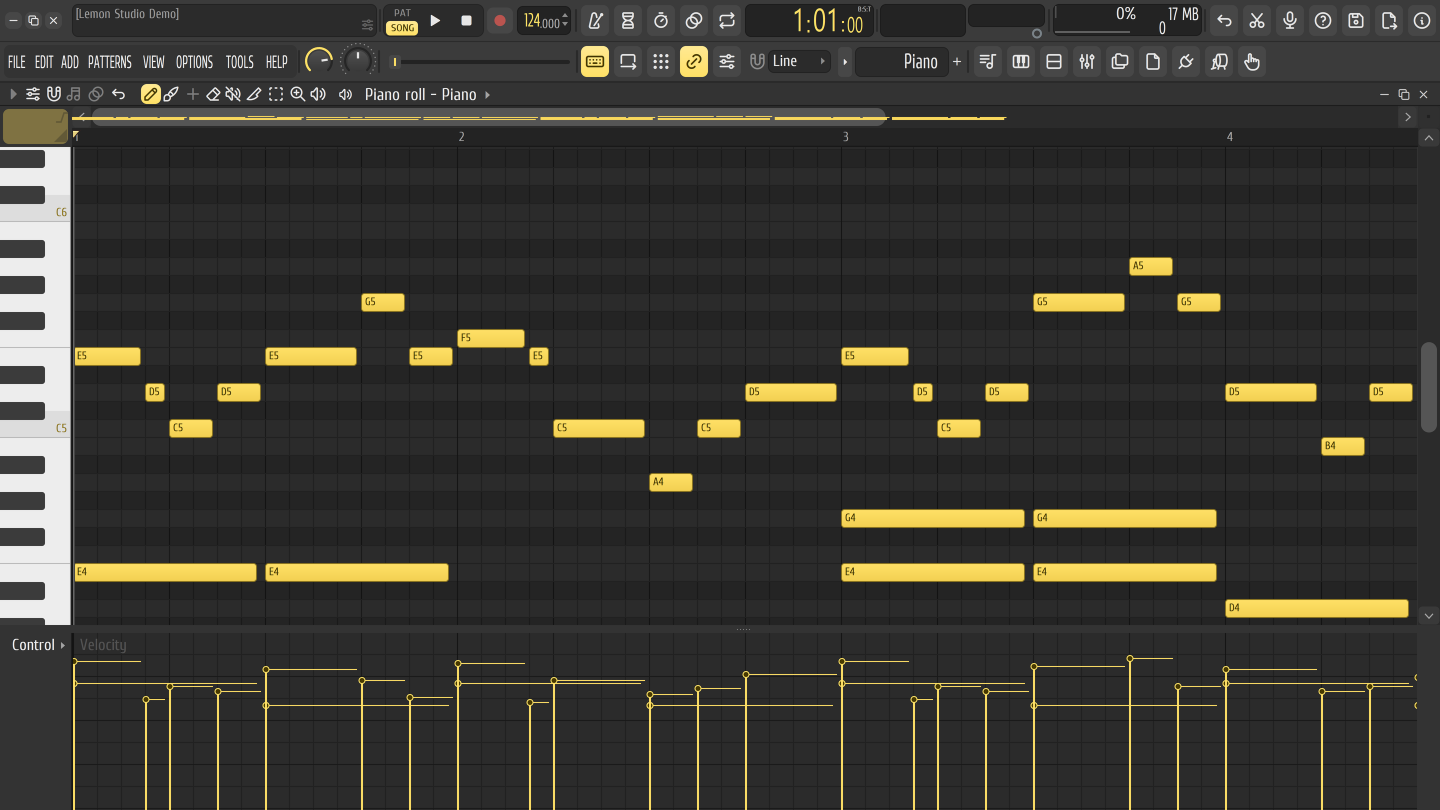
Write some notes
Section titled “Write some notes”- Select an instrument in the instrument rack, then press F7.
- Click the grid to place a note. It lands on the snap and takes the length of the last note you touched.
- Drag a note to move it, and drag its right edge to change its length. Shift+drag makes a copy.
- Right-click a note to delete it.
- Press Space to hear it, with the toolbar’s switch on PAT.
Click a key on the keyboard at the left to hear it. To edit another instrument, click its name in the window’s title bar. Shift+K moves to the next one. The other instruments’ notes in the pattern show dimly behind yours, and Other instruments’ notes (Alt+V) turns that off.
The tools
Section titled “The tools”The buttons in the title bar, or their letters while the computer keyboard isn’t playing notes.
| Tool | Key | What it does |
|---|---|---|
| Draw | P | Click to place a note, drag to move or resize |
| Paint | B | Drag to lay notes along one row |
| Delete | D | Click or swipe to delete |
| Mute | T | Click or swipe to mute and unmute. Muted notes stay but don’t play |
| Slice | C | Drag a line to cut the notes it crosses |
| Select | E | Drag a box. Ctrl adds to the selection |
| Zoom | Z | Drag a box to zoom. Right-click zooms out and back |
| Playback | Y | Drag to hear the notes under the line |
Holding the right button deletes in most tools. The magnet button sets the snap, and right-clicking it sets the length of the next notes. Hold Alt while you click or drag to ignore the snap.
Paint and add, Note properties, Scale and chord helpers and note colours are greyed out: they aren’t available yet.
Velocity and control lanes
Section titled “Velocity and control lanes”The panel under the grid shows one value at a time. Click Control to pick it:
- Note properties: velocity, pan, release, filter cutoff, filter resonance, fine pitch and repeat. Click or drag to set a note’s value. If notes are selected, only they change.
- Channel controls: the instrument’s panning, volume and pitch, drawn over time. Left-drag draws and right-drag erases.
Drag the bar above the panel to resize it, and double-click the bar to hide or show the panel.
Commands
Section titled “Commands”The Piano roll tools button in the title bar lists these, with their keys. They work on the selected notes, or on all of the instrument’s notes in the pattern when nothing is selected.
| Command | Key | What it does |
|---|---|---|
| Quick quantize | Ctrl+Q | Snaps starts and lengths. Shift+Q snaps starts only |
| Quantize… | Alt+Q | The same with a template, sensitivity and levels |
| Quick legato | Ctrl+L | Stretches each note to the next one |
| Quick chop, Chop… | Ctrl+U, Alt+U | Cuts notes into repeats, by the snap or by a rhythm you choose |
| Glue | Ctrl+G | Joins touching notes of the same key |
| Discard lengths | Shift+D | Shortens notes to the snap |
| Strum… | Alt+S | Spreads the notes of a chord in time |
| Arpeggiate… | Alt+A | Turns held chords into a pattern of single notes |
| Flam… | Alt+F | Adds a quick extra hit before each note |
| Thin out notes | Alt+W | Takes away some of the notes in each beat or bar, and can stretch the rest to fill the gaps |
| Limit… | Alt+K | Keeps notes inside a key, a scale or a range, and transposes |
| Flip… | Alt+Y | Mirrors notes in pitch or time |
| Randomize… | Alt+R | Writes a new melody from a key or scale, or randomizes levels |
| Scale levels… | Alt+X | Scales the values in the current lane |
| LFO… | Alt+O | Writes a sine, triangle or square wave into the current lane |
The commands with dots open a small window. Your notes change as you turn its controls: Accept keeps what you hear, as one undo step. Closing the window puts the notes back.
Import MIDI
Section titled “Import MIDI”- Piano roll tools ▸ Import MIDI file… brings a file into this instrument, replacing its notes or blending with them.
- FILE ▸ Import ▸ MIDI file…, or a
.midfile dropped on the window, opens the Import MIDI data form. Pick the tracks and channels, and which instrument plays them. Tick Start new project or add the file to this one. Realign events removes silence before the first note.
To write a file, see Exporting audio.
Good to know
Section titled “Good to know”- Ctrl+A selects all and Ctrl+B duplicates to the right. Shift+arrows move the selection, and Ctrl+Up or Down moves it an octave.
- Ctrl+wheel zooms time, and Ctrl+middle-drag makes the keys taller or shorter.
- Drag in the ruler to set where the pattern starts playing. Right-drag to make a time selection, which playback loops.
- Step edit (Ctrl+E): with playback stopped, the notes you play are written one step at a time.
- TOOLS ▸ Chord progression tool… asks for a line of chords, such as
C G Am ForI V vi IV, and writes one chord per bar.
Related
Section titled “Related”- Instrument rack
- Recording: play notes in instead of drawing them
- Arranger: put your patterns in order