 Lemon wiki
Lemon Parametric EQ
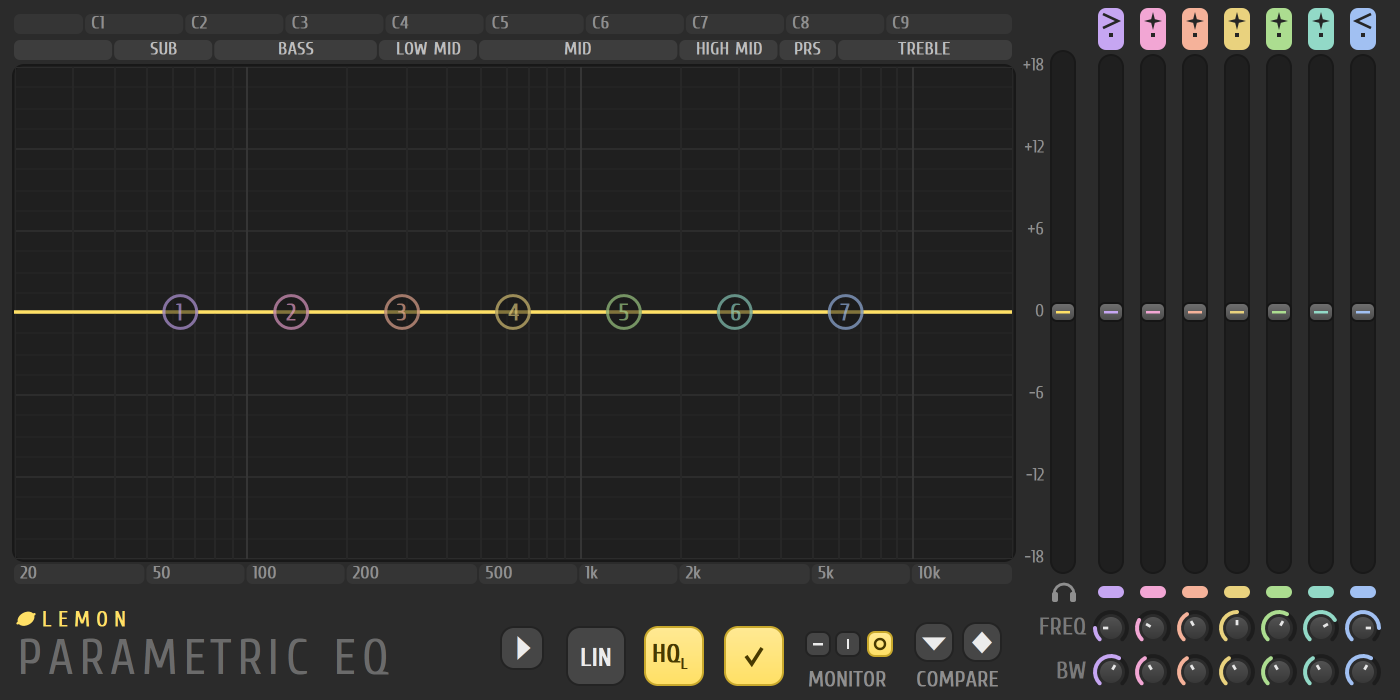
Lemon Parametric EQ is a seven-band equalizer. Use it to cut mud, lift air, roll off rumble, or carve space for one sound next to another. You shape the sound by dragging dots on a graph, and a live spectrum moves behind the curve so you can see what you’re working on.
It’s built into Lemon Studio, and also comes as a VST3 and CLAP plugin for other DAWs.
Cut the mud
Section titled “Cut the mud”- Open the mixer with F9, click an empty effect slot on the track, and pick Lemon Parametric EQ.
- Drag one of the band dots to around 250 Hz. Dragging up or down sets its gain, and left or right sets its frequency.
- Pull it down a few dB. The bright curve shows the result, and the band’s own shape is filled in while you hold it.
- Turn the mouse wheel over the dot to make the band wider or narrower, or turn the BW knob under its column.
- To hear the track without a band, click the small bar under its fader to switch that band off. Right-click the bar to hear only that band.
The graph
Section titled “The graph”The graph runs from 20 Hz to 20 kHz across and from +18 to -18 dB up and down. Strips above it name the ranges (SUB, BASS, LOW MID, MID, HIGH MID, PRS and TREBLE) and the notes from C1 up. Each band has a coloured dot. Dragging the empty graph moves the main level.
Each band has a column on the right:
| Control | What it does |
|---|---|
| Type tab (top) | Low pass, band pass, high pass, band stop, low shelf, peaking, high shelf, or disabled. Click and drag, or use the wheel, to step through them |
| Order mark | For pass filters, the steepness: gentle or steep, up to 8 |
| Fader | The band’s gain. Pass and band filters don’t use it |
| Bar under the fader | Switches the band on or off |
| FREQ and BW | The band’s frequency and its width |
The fader at the far right of the columns is the main level. Right-click a band’s dot for its Type and Order, or Reset it, and right-click any knob or fader for Enter value….
Quality modes
Section titled “Quality modes”Along the bottom:
- LIN switches to linear phase, which doesn’t shift the timing of different frequencies. It adds a delay, which Lemon Studio makes up for in the mixer.
- HQ turns on oversampling. Right-click it to pick HQ+, HQ Legacy or HQ Enhanced.
- The tick button shows or hides the band dots.
- MONITOR picks what the spectrum listens to: nothing, the input, or the output.
- COMPARE holds two settings. The down arrow copies the current one to B, and the up and down arrows swap A and B.
The round button with a triangle opens Options. It sets the spectrum’s range and smoothing, and the optional heatmap strip. A few entries there (such as the minimum-phase mod speed and the solo mode) are greyed out and do nothing yet.
- Hold Alt and click a band’s dot to reset that band.
- Click the headphones button to turn on band solo, then hold Shift and click a dot to hear only that band while you hold the mouse. Without it, Shift and drag changes a band’s width.
- A pass filter with a steep order is the fastest way to remove rumble below the bass.
Related
Section titled “Related”- Mixer
- Automation
- Lemon Filter, for a resonant sweep
- Lemon Limiter, to control levels after the EQ
- Plugins