 Lemon wiki
Lemon Drop
Lemon Drop shows you what a sound is doing. Put it in an effect slot and it draws the audio passing through as a wave, a spectrum, a level meter or a stereo picture. It doesn’t change the sound at all.
It’s built into Lemon Studio, and also comes as a VST3 and CLAP plugin for other DAWs.
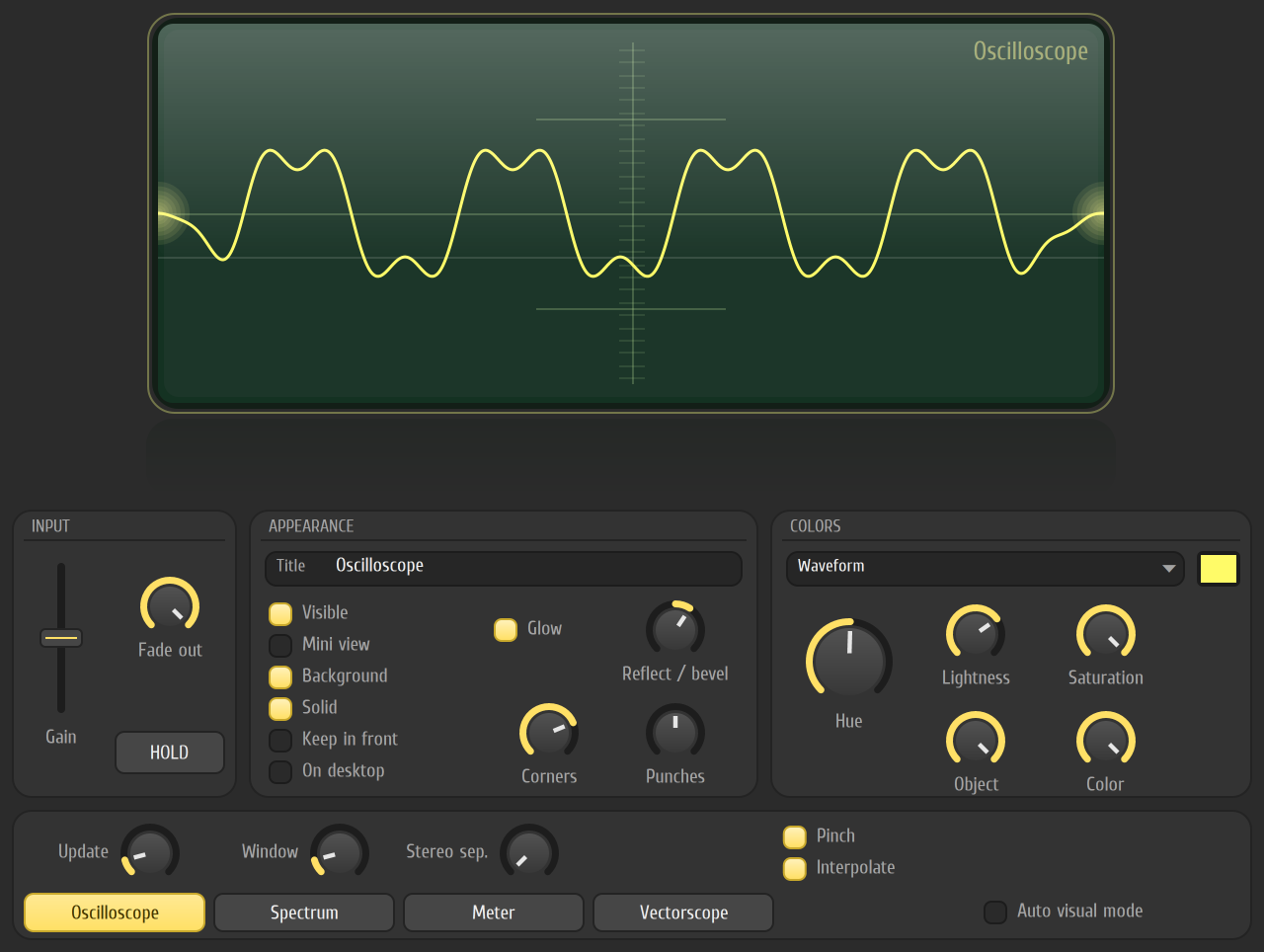
See a sound
Section titled “See a sound”- Put Lemon Drop in an effect slot on a mixer track. To watch the whole song, use the Master track.
- Press play. The display at the top of the window draws what’s passing through.
- Click Oscilloscope, Spectrum, Meter or Vectorscope to choose what it draws.
- If the picture is too small, raise Gain. It only changes the drawing, not the sound.
- Press HOLD, or middle-click the display, to freeze the picture so you can look at it.
Move the pointer over the display for a reading: time and level on the oscilloscope, frequency and nearest note on the spectrum, level on the meter, and pan on the vectorscope.
The four displays
Section titled “The four displays”Each tab has its own settings above it. Right-click the display for a menu with the same choices, plus Auto. Auto visual mode picks for you: the meter when the display is tall, and the oscilloscope when it’s wide.
Oscilloscope
Section titled “Oscilloscope”The wave itself, as in the picture above. Window sets how much time you see, and Stereo sep. pulls the left and right sides apart. Pinch tapers the ends of the trace, and Interpolate smooths it between samples.
Spectrum
Section titled “Spectrum”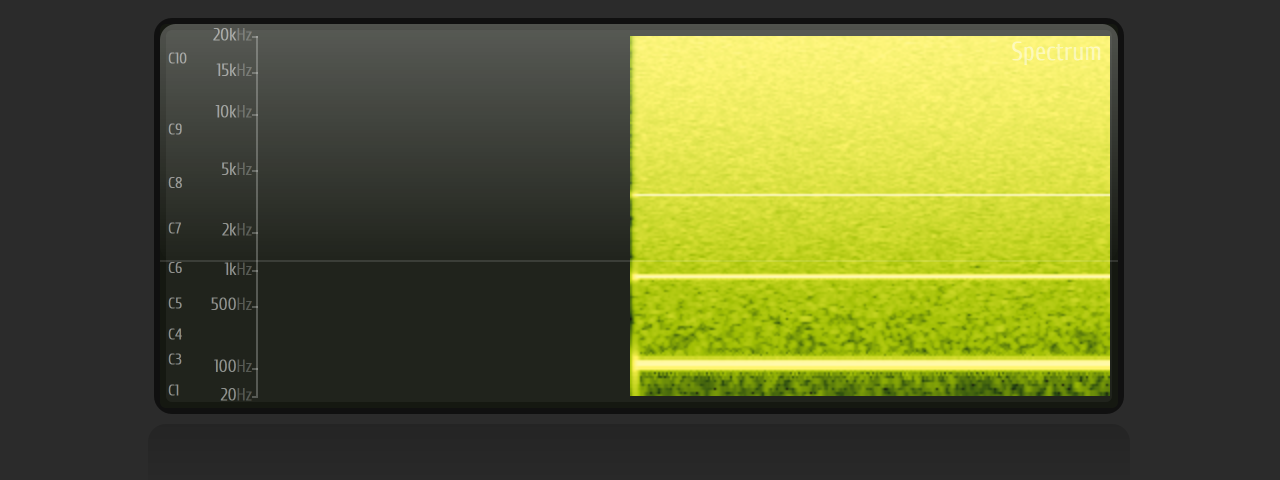
A scrolling picture of a sound’s frequencies, low at the bottom and high at the top, with colour showing how loud each one is. dB range sets how quiet a sound can be and still show, and Max res sets the detail. Scale changes how much room each part of the range gets. Natural weighting tilts the picture so that pink noise draws level.
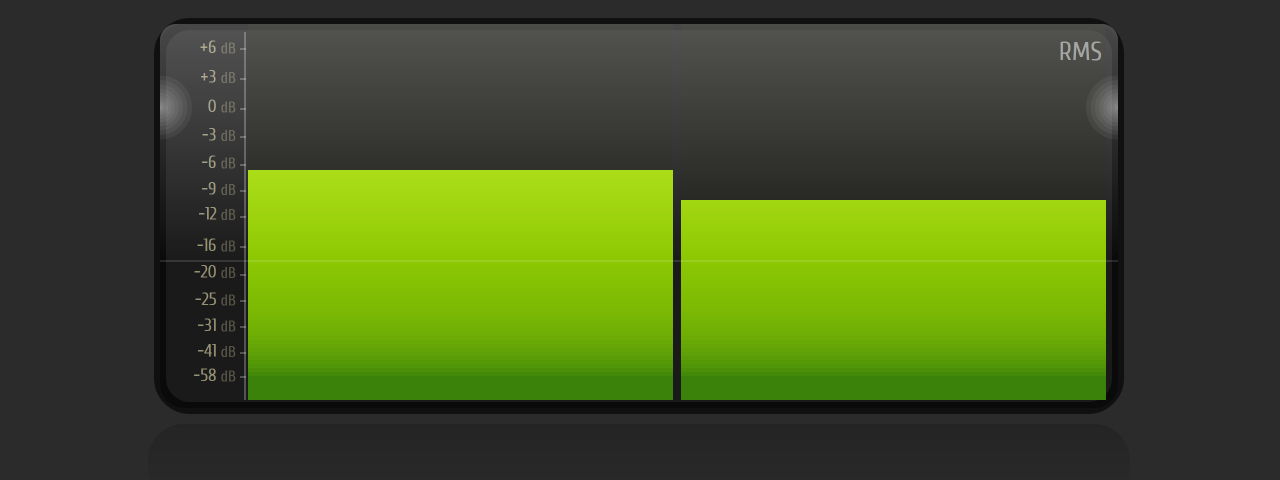
A bar each for the left and right levels. Mode sets how the level is read: Peak, PPM, RMS, Vu, Leq(A) or ITU-R BS.1770. Hold time sets how long the peak line stays up, and Decay how quickly the bars fall.
Vectorscope
Section titled “Vectorscope”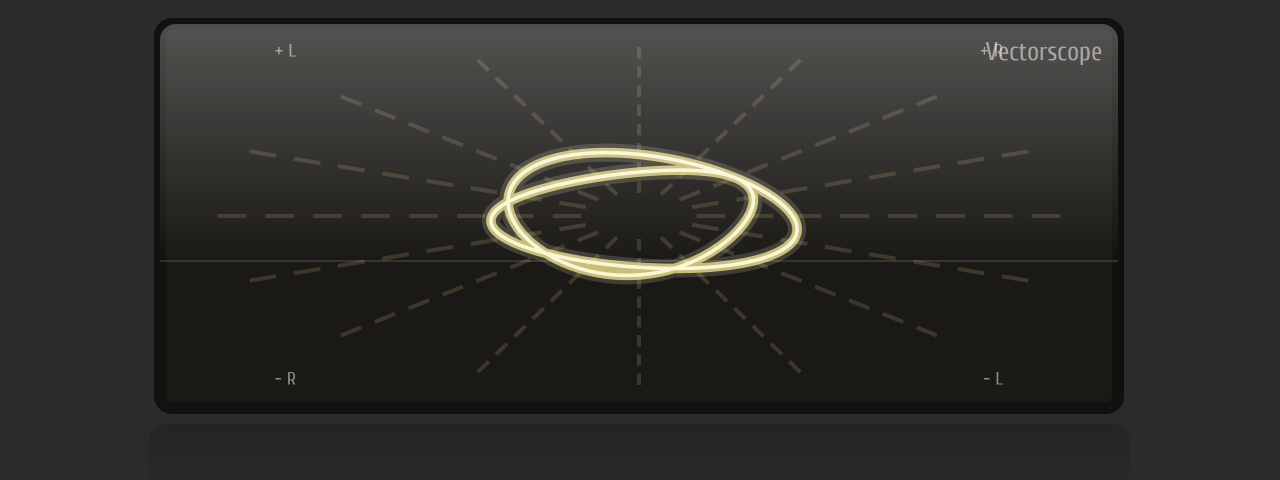
A sound’s stereo picture: how wide it is and which way it leans. Mode sets how it’s drawn: String, Spaghetti, Tube or Glowstick. Thickness sets the width of the line, and Add makes overlapping lines brighter.
Float it over your work
Section titled “Float it over your work”Once you’ve opened Lemon Drop’s window, the display also floats in a see-through window of its own, on Windows, macOS and Linux. It stays there when you close the plugin window. Drag it to move it, drag its lower right corner to resize it, and right-click it for the menu.
| Control | What it does |
|---|---|
| Visible | Shows or hides the floating display |
| Mini view | Switches it to its small size |
| Background | Draws its background and frame. Turn this off and only the picture, labels and title float |
| Solid | It takes the mouse. Turn this off and clicks go through to whatever is behind it, so you can’t drag it until you turn this back on |
| Keep in front | Keeps it above every other window |
| On desktop | Keeps it showing when Lemon Studio is hidden or minimised |
When you reopen a project, a Lemon Drop’s floating display appears once you’ve opened that Lemon Drop’s window.
Change the look
Section titled “Change the look”Use the Presets box in the plugin window’s title bar for a quick start. They’re in three folders: Modes for a plain start on each display, Themes for finished looks, and Lemon for presets named for what they show, such as Green glass oscilloscope and Warm RMS meter.
To make your own:
- APPEARANCE has the Title, and sets the frame with Reflect / bevel, Glow, Corners and Punches.
- COLORS colours one part at a time. Choose the part from the list, then set it with Hue, Lightness and Saturation. Object and Color set how see-through it is.
- With Background off and Keep in front on, the trace floats over the arranger like part of your desktop.
- Fade out sets how long the picture stays after the sound stops, when the background is off.