 Lemon wiki
Instrument rack
The instrument rack is where a song starts. Each row is one instrument, with a mute switch, pan and volume knobs, the mixer track it plays through, its name button and a row of steps. Press F6 to show or hide it.
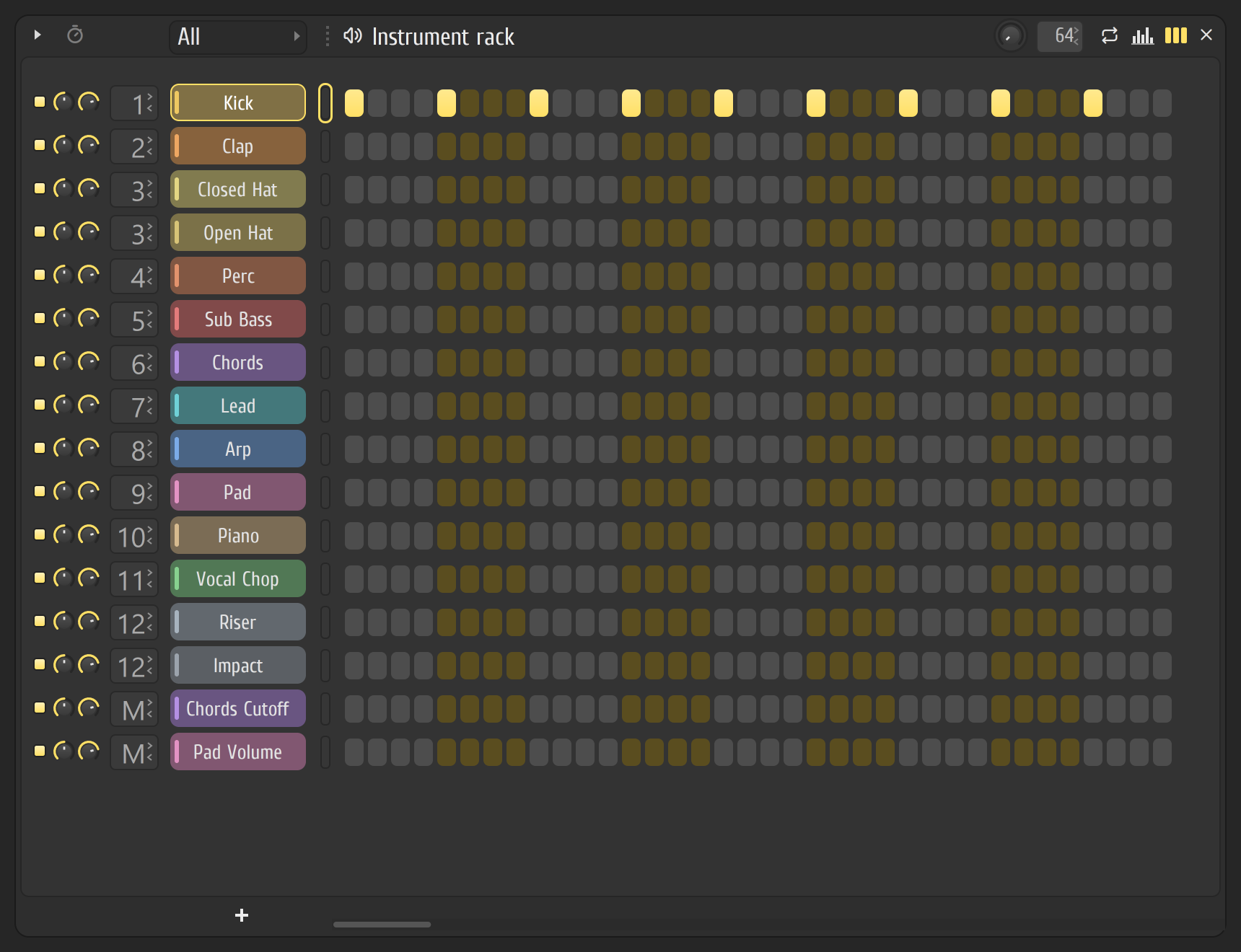
Whatever you do here is saved in the current pattern. Pick another pattern in the toolbar, and the same rows hold different notes.
Add an instrument
Section titled “Add an instrument”- Press F8 for the plugin palette and click an instrument, such as Lemon Trio. The + under the rows and ADD ▸ More plugins… open it too.
- ADD ▸ Sampler adds an empty Lemon Sampler.
- To play a sample, drag it from the browser onto the rack. It opens in Lemon Sampler. Dropped on a sampler’s row, it replaces that row’s sample.
Click an instrument’s name button to open its window, and Shift+click to rename it. Right-click it for its menu: rename, change its icon, replace it, clone it and more.
Make a beat
Section titled “Make a beat”- Click steps to light them. Lit steps play, in order, as the pattern loops.
- Press Space to play. Make sure the toolbar’s PAT and SONG switch is on PAT, so you hear the pattern on its own.
- Click a lit step to turn it off. Drag along a row to light several, and right-drag to clear them.
- Turn the swing knob at the top right of the rack to loosen the groove.
Unlit steps alternate between two colours, one beat at a time, so you can see where you are in the bar. A dimmed step is past the pattern’s length, and clicking one makes the pattern longer.
Go beyond steps
Section titled “Go beyond steps”- Piano roll: to write melodies and chords, open an instrument in the piano roll with F7. Once a pattern has notes the steps can’t show, the row turns into a small preview of them.
- Loops per instrument: the rack’s Loop mode button gives each row a box for its own loop length, which is an easy way to get patterns that shift against each other.
- Layers: ADD ▸ Layer makes one instrument that plays several at once. Select rows first and the layer takes them as its children.
Tidy up
Section titled “Tidy up”- The small switch at a row’s left mutes it, and Ctrl+click solos it.
- To select rows, click the narrow slot between the name button and the steps. Shift+click adds to the selection. Then use the rack’s menu, the small arrow at its top left, to colour them, change their swing mix or collapse them.
- Collapse selected (Alt+Z) shrinks rows so more fit on screen, and Expand all (Alt+U) brings them back.
- Select unused instruments (TOOLS menu) picks out rows nothing plays.
- The dropdown at the top left of the rack filters what it shows, such as one group of instruments.
Good to know
Section titled “Good to know”- Each row’s small number box is its mixer track. Drag it up or down to route the instrument somewhere else, and double-click it to see that track in the mixer.
- Render to audio clip in the PATTERNS menu turns the current pattern into an audio clip. Render and replace… also puts it in place of the pattern’s clips in the arranger, which frees up CPU.
- Detached, in the rack’s menu, takes the rack out into its own window, for a second screen.
- A right-click toggles a step just as a left-click does. OPTIONS ▸ General settings has a Right button clears steps check, if you’d rather it always cleared them.
Related
Section titled “Related”- Piano roll
- Arranger: put your patterns in order
- Your first song