 Lemon wiki
Custom themes
A theme sets Lemon Studio’s colours. Open OPTIONS ▸ Theme settings to choose one. It applies as soon as you click it, and Lemon Studio remembers it for next time.
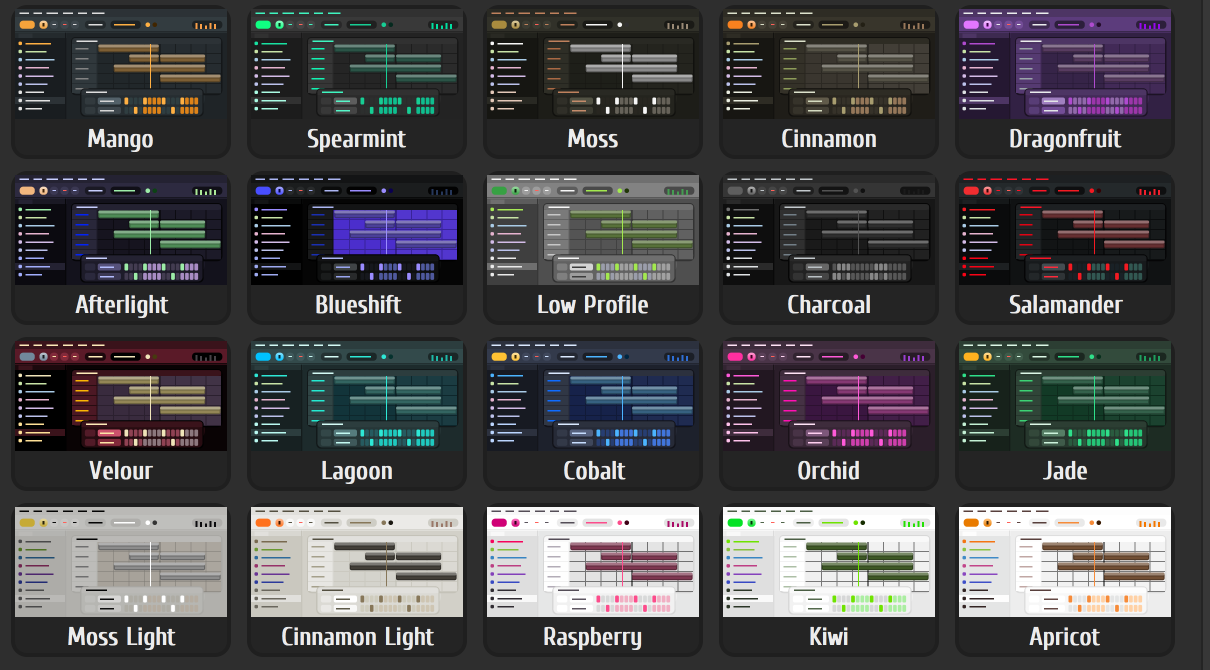
Pick a theme
Section titled “Pick a theme”The Themes list has over twenty built-in themes, dark ones first and light ones such as Moss Light and Raspberry after them. Your own themes follow. Click a tile to use it.
Adjust the colours
Section titled “Adjust the colours”Adjustments changes the applied theme while you watch.
- The knobs are Hue, Saturation, Brightness, Contrast and Text, which sets the browser’s text. Drag one or use the wheel. A middle click puts it back to the chosen theme’s value.
- The colour circles are Selection, Highlight, Mute, Option, Steps, Meters, Waves and Text. Click one to open a colour picker, and Revert puts the old colour back. The Option colour isn’t used anywhere yet.
- Audio and automation clips use note colors, under Options, draws those clips in the theme’s note colours.
Undo and Redo step through your changes, as do Ctrl+Z and Ctrl+Y while this page is open. Reset goes back to Lemon Studio’s own colours.
If your colours make text hard to read, the page warns you, and Fix text changes the text colour so it reads everywhere.
Save your own
Section titled “Save your own”- Adjust a theme until you like it.
- Click Save preset… and give it a name. It gets a tile of its own after the built-in themes.
Right-click your own tile for Rename…, Delete… and Show in folder. They live in a themes folder inside your settings folder. To start from a built-in theme, right-click its tile and choose Duplicate as my theme.
Load a theme file
Section titled “Load a theme file”Load theme… opens a .flstheme theme file, and dropping one on the window does the same.
Good to know
Section titled “Good to know”VIEW ▸ Background ▸ Set image wallpaper… makes a PNG or JPEG picture the workspace’s wallpaper, as part of the theme.