 Lemon wiki
Browser
The browser is the panel down the left of the window. It’s where you find samples and projects, plugins and presets, and everything already in the current project. Press Alt+F8 to show or hide it.
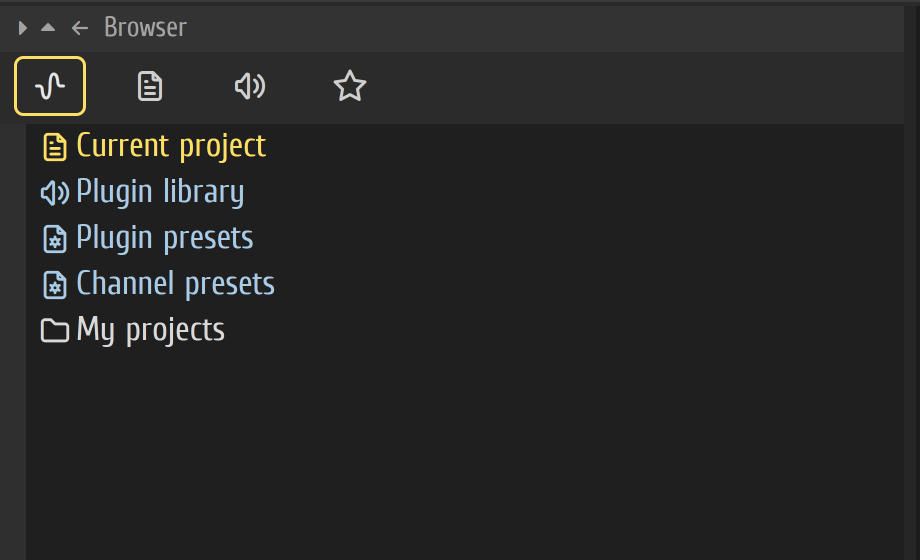
The four tabs along the top are All, Current project, Plugin library and Favorites. Hover over a row whose name doesn’t fit to read all of it, and drag the bar at the browser’s right edge to make it wider.
Find a sample
Section titled “Find a sample”- Drag your samples folder from your file manager onto the window. It joins the All tab and stays there.
- Open folders with a click. Click a sample to hear it.
- Drag the sample where you want it (see below).
With the mouse over the browser, the arrow keys walk the list and play each sample you land on. A preview stops after five seconds unless you tick Full sample preview in the browser’s menu, the small arrow in its title bar. A middle-click loads the sample into the selected instrument.
To manage these folders, choose Configure extra folders in the same menu.
Search
Section titled “Search”Click the box at the bottom of the browser, or press Ctrl+F, and type. Search finds files anywhere below your folders, even in folders you haven’t opened. Enter goes to the next match and the × clears the search. The browser’s menu has the options, such as Search box on top and Type to filter.
The TAGS chip beside the box is greyed out: tags aren’t available yet.
Drag things in
Section titled “Drag things in”| Drag this | Onto | What happens |
|---|---|---|
| A sample | The arranger | An audio clip |
| A sample | The instrument rack | A new Lemon Sampler instrument. On a sampler’s row, it replaces that row’s sample |
| A sample | An open plugin window | The plugin loads it, if it takes files |
| An instrument | The rack or the arranger | Added to the rack |
| An effect | The mixer | Goes in the slot you drop it on. Dropped elsewhere, it takes the selected track’s first empty slot |
| A preset | A plugin window, a rack row or a mixer slot | Loads there. Dropped anywhere else, it adds its plugin with the preset |
| A channel preset | Anywhere in the project | Adds that instrument with its settings |
| A pattern | The arranger or the piano roll | A clip, or the piano roll switches to it |
Press Esc during a drag to cancel it. Right-click a row for the same actions in a menu. Nothing in the browser deletes or moves files on your disk.
Your projects
Section titled “Your projects”My projects lists the folder where new projects are saved, with their backups. Click a file to see its date, size and path. The browser doesn’t open projects itself: use FILE ▸ Open… (Ctrl+O), or drop the file on the window from your file manager.
The current project
Section titled “The current project”The Current project tab lists what’s in this project: its History, Patterns, Effects, instruments, Remote control links and Samples. Click a pattern or instrument to select it, and right-click for its menu. The VIEW menu’s Browser section jumps to most of these.
A project with a data folder also shows Project data, its own folder of samples and recordings.
Plugin library
Section titled “Plugin library”Press Shift+F8 for this tab. It lists your instruments and effects by category, then every plugin by format under Installed: Built-in, CLAP, VST3 and VST2. Drag one in, or right-click it and choose Add to instrument rack or Add to selected mixer track. See Your plugins.
Presets
Section titled “Presets”- Plugin presets holds your own presets and the factory ones, a folder for each plugin. Drag one in, or right-click it and choose Load into selected channel.
- Channel presets holds whole instruments with their settings, saved with Save channel state as… in a plugin window’s menu.
Favourites
Section titled “Favourites”Right-click a file or a plugin and tick Favorite. A star appears on its row, and it’s listed on the Favorites tab. A plugin’s star is the same one as in the Plugin manager, so favourite plugins also come first in the plugin palette.
Related
Section titled “Related”- Your plugins
- Undo and history: the History list
- Settings