 Lemon wiki
Lemon Limiter
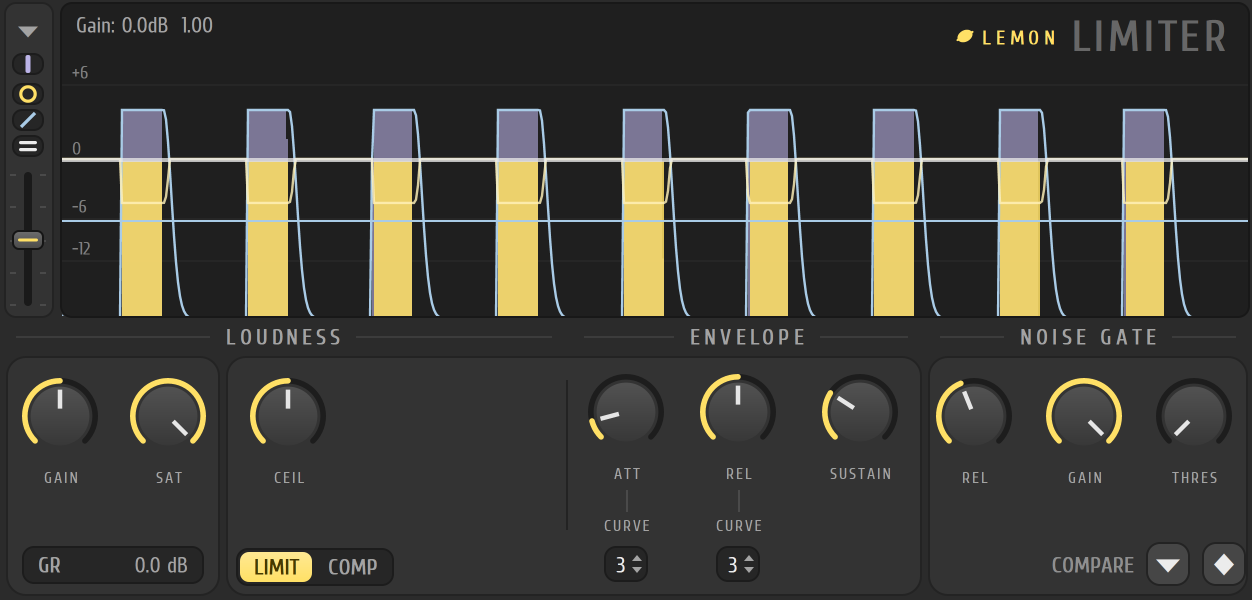
Lemon Limiter keeps a sound under a ceiling, squeezes its dynamics, and shuts out noise between phrases. It’s three tools in one window: a limiter, a compressor and a noise gate. A scrolling display shows what’s going in, what’s coming out and what the plugin is taking off.
It’s built into Lemon Studio, and also comes as a VST3 and CLAP plugin for other DAWs.
Tame your peaks
Section titled “Tame your peaks”- Put Lemon Limiter in an effect slot on the mixer track you want to limit, or on the Master.
- Play the loudest part of your song. The display scrolls with lavender for the input and lemon for the output.
- Turn GAIN up until the lavender pokes above the lemon. That gap is what the limiter is taking off, and the GR chip shows it in dB.
- Set CEIL to the level you never want to pass. The pale line across the display marks it.
- If the sound gets squashed, raise REL so the gain comes back more slowly, or lower GAIN.
The LIMIT and COMP pages
Section titled “The LIMIT and COMP pages”The middle card has two pages, picked with the LIMIT and COMP buttons at its bottom left.
LIMIT has CEIL (the ceiling), ATT (how early it reacts), REL (how fast it lets go) and SUSTAIN. Under ATT and REL, the CURVE boxes pick the shape of the attack and release from 1 to 8. Click and drag them, or use the wheel.
COMP is a compressor:
| Control | What it does |
|---|---|
| THRES | The level above which compression starts. At its top the compressor is off, and its knobs turn grey |
| KNEE | How gradually compression starts |
| RATIO | How hard it squeezes above the threshold |
| ATT, REL, SUSTAIN | The compressor’s own timing and the length of the window it listens through |
| CURVE | The shape of the attack and release |
| SIDECHAIN | See below |
GAIN and SAT on the left are always there: GAIN raises the level, and SAT sets where a gentle saturation starts to round off peaks.
The noise gate
Section titled “The noise gate”The NOISE GATE card on the right quiets the sound when it falls below THRES. GAIN is the level the sound is turned to when the gate is closed, and REL is how quickly the gate lets go.
Sidechain
Section titled “Sidechain”The compressor can listen to another track instead of its own. First route the other track into this one in the mixer, with Sidechain to this track on the track’s route arrow, or with Track routing ▸ Sidechain selected tracks to this track. Then, on the COMP page, set the SIDECHAIN box to that track’s input number, counting the tracks routed into this one from 1. The box shows – when no sidechain is used.
Use this to duck a pad under a kick drum.
The display
Section titled “The display”The strip at the left of the display holds four switches (input peaks, output peaks, analysis and gain envelopes, level markers), a speed fader for how fast it scrolls, and a menu. Hover the display to read the level under your pointer in the status text.
- For pumping that follows a rhythm you draw, try Lemon Peak Controller instead of a sidechain.
- COMPARE keeps two settings so you can swap between them with one click.
Related
Section titled “Related”- Mixer
- Lemon Peak Controller
- Press, a multiband maximiser
- Lemon Soft Clipper
- Plugins