 Lemon wiki
Tesla
Tesla is the audio editor and recorder. It sits in a mixer slot, records what reaches that slot, and holds one sample that you can mark up, edit and send on to the arranger or an instrument. It’s built into Lemon Studio and also comes as a VST3 and CLAP plugin for other DAWs.
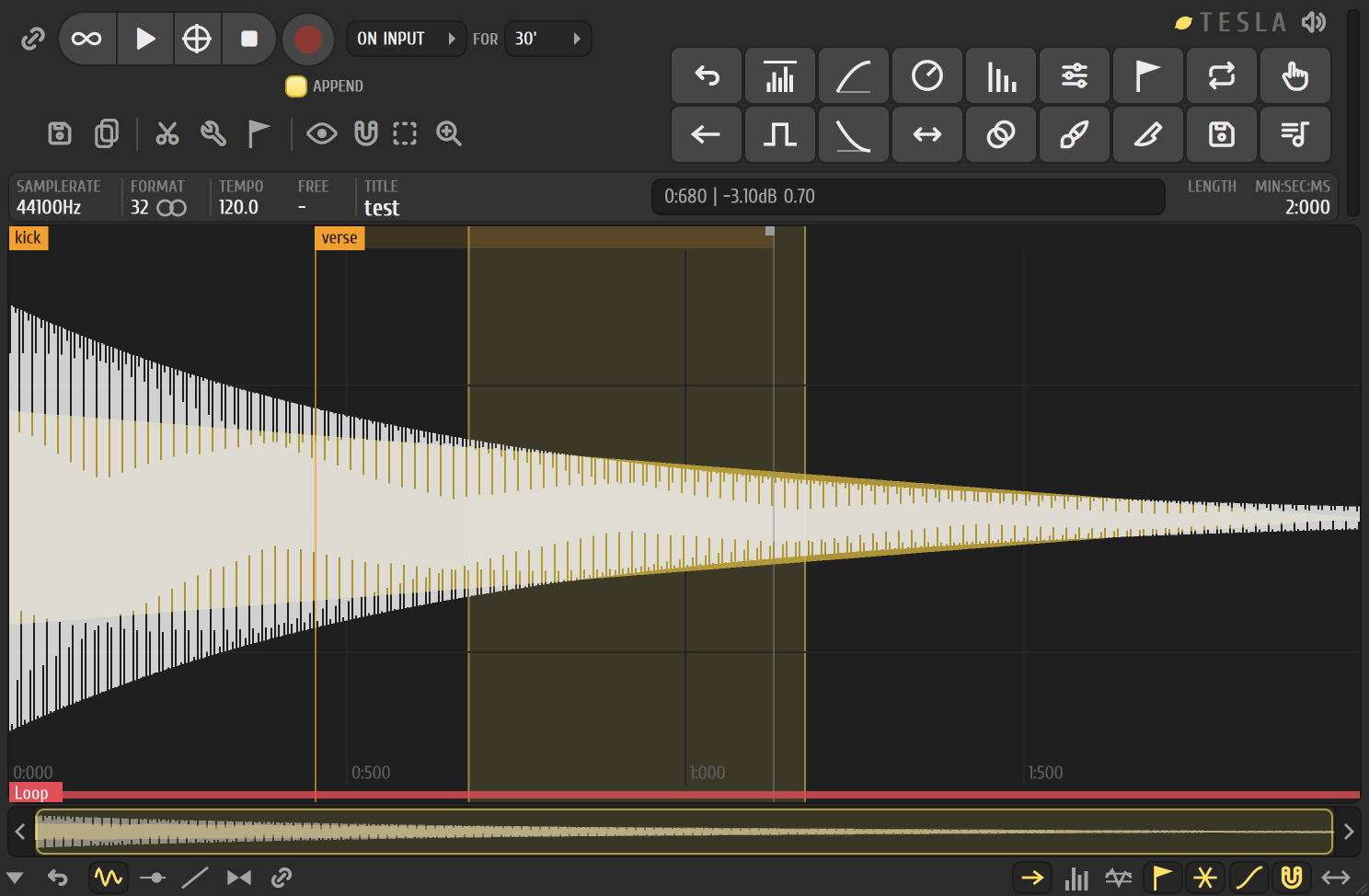
Get a sound quickly
Section titled “Get a sound quickly”- Open the mixer, right-click a track and choose Open audio editor (Ctrl+E). Open audio editor and record (Shift+E) opens it and starts recording while the song plays.
- To edit something that already exists, choose File ▸ Load sample… in Tesla, or drop a file on the window.
- Drag across the waveform to select part of it.
- Press Ctrl+X to cut, Del to delete, or Ctrl+Del to trim the sample to the selection. Ctrl+Z undoes.
- Open Tesla’s Tools ▸ Sequencing and choose Send to arranger as audio clip (Shift+C) to put the result on the arranger.
Recording
Section titled “Recording”The round record button arms Tesla. Two boxes beside it decide what happens next:
- The first chooses when to record: Now, On input (starts when sound arrives), Input (records only while sound is present) or On play (records while the song plays).
- FOR is how long to go on, from 1 minute to 60 minutes, or up to a size such as 100MB, or forever. At the limit Tesla keeps recording and holds the most recent part.
- APPEND adds the new take to the end of the sample instead of replacing it.
There is more about inputs, quick record and retro audio capture on the recording page. TOOLS ▸ Retro audio capture ▸ Open capture in audio editor puts the audio from retro capture into the master track’s Tesla.
Selecting, markers and regions
Section titled “Selecting, markers and regions”- The Select menu has select all, before or after the selection, and previous or next region.
- M adds a marker at the cursor. Alt+M adds a region from the selection. Right-click a marker to rename or delete it.
- Alt+L sets a loop on the selection.
- Regions ▸ Auto-slice cuts a sample into regions by its hits, at three sensitivities, or by a grid. Detect beats sets the tempo and makes a region for each beat, and Detect pitch regions makes one for each held note.
- The Snap menu snaps your selection to the grid, regions, samples or zero crossings.
Editing and tools
Section titled “Editing and tools”- Edit: cut, copy, paste (insert, replace or mix), delete, trim, insert silence, and a full undo history.
- Amp…, Normalize, Fade in, Fade out, Reverse, Reverse polarity and the channel tools (swap, convert to mono).
- Time stretch / pitch shift… (Alt+T) changes pitch by up to two octaves either way and length from a quarter to four times, with a preview. Drum loop stretch… (Ctrl+T) lengthens or shortens a loop by moving its slices.
- Convolution reverb…, Equalize… and Blur… work on the selection, with a preview.
- Clean up (denoise)… (Ctrl+U) removes noise matching a sample of the noise, and has a declicker and a declipper. Vocal denoise / isolator… keeps or removes a voice, and Deverb… takes out reverb.
- Noise gating finds a threshold and trims or gates the quiet parts.
- The buttons at the bottom switch the view to a volume, pan or stereo envelope drawn over the sample. Apply volume envelopes (Ctrl+E inside Tesla) writes them into the sample.
Sending audio on
Section titled “Sending audio on”Tools ▸ Sequencing sends the selection, or the whole sample, to the arranger as an audio clip, to the selected instrument, or to a new Lemon Slicer channel, cut at its regions. Send notes to piano roll finds the notes in the audio and writes them into the piano roll. File ▸ Save sample as… writes a WAV file, and Save sample as 24Bit .wav file… a 24-bit one.
Good to know
Section titled “Good to know”- Tesla opens WAV, AIFF and FLAC files.
- Undo mix (spectral) isn’t available yet.
Related
Section titled “Related”- Mixer
- Recording
- Arranger
- Lemon Sampler, to play the result from the keyboard