 Lemon wiki
Citrus
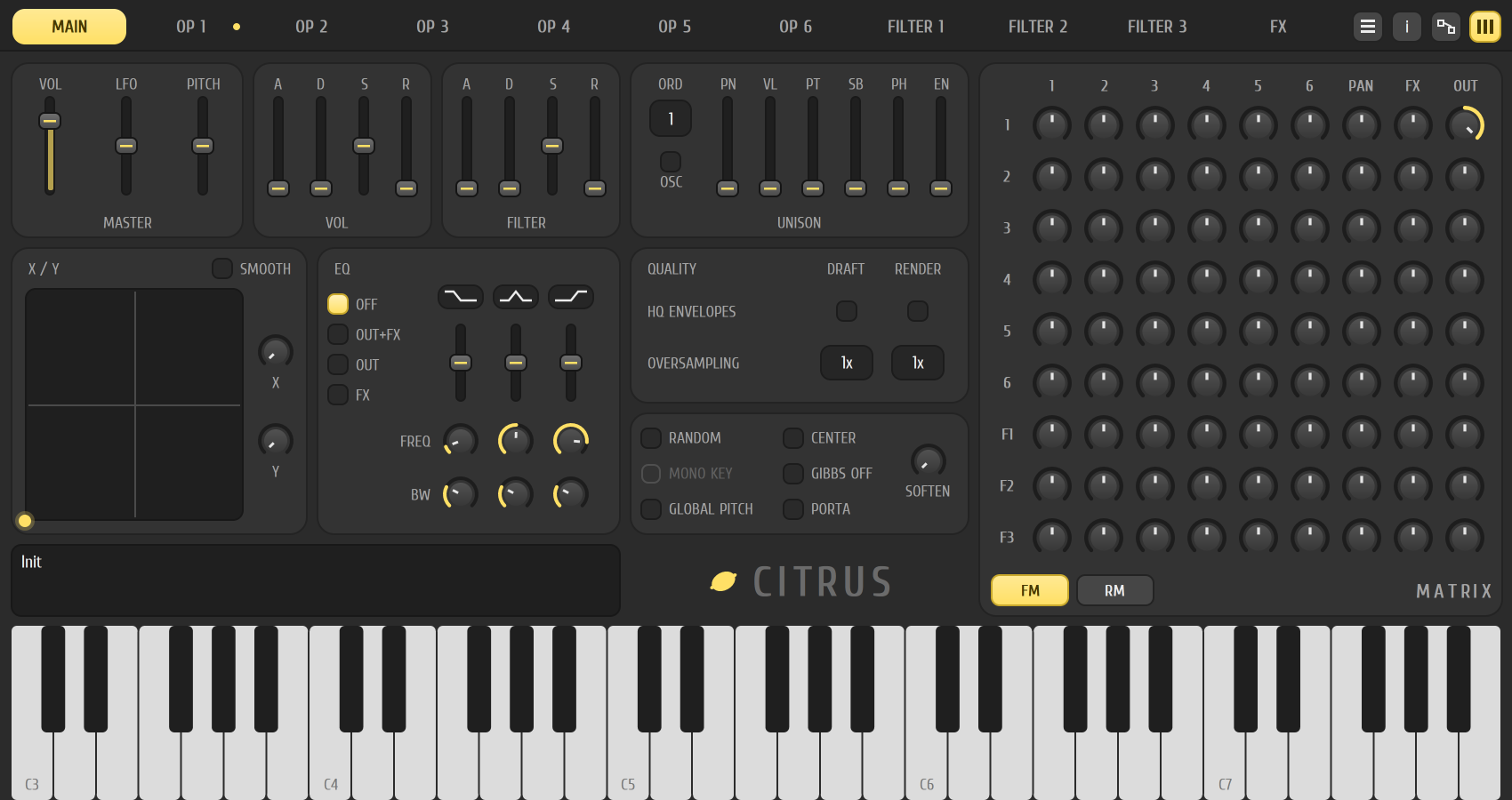
Citrus is Lemon Studio’s six-operator synthesizer. Six oscillators, called operators, can play on their own or modulate each other, and three filters and a set of effects sit behind them. It’s for bells, electric pianos, basses, evolving pads and other sounds that simple oscillators don’t reach. It’s built into Lemon Studio and also comes as a VST3 and CLAP plugin for other DAWs.
Get a sound quickly
Section titled “Get a sound quickly”A new Citrus starts as an init patch: operator 1, a plain sine wave, straight to the output. Either start from a preset or build from there.
From a preset
- Add Citrus from the ADD menu and click its name in the instrument rack.
- Play some notes with your computer keyboard, or use the testing keyboard that the last button in the window’s top right shows.
- Pick a preset from the box in the window’s title bar. Use the arrows to step through them.
From the init patch
- Open the OP 2 tab and turn up its VOL knob.
- In the matrix on the right, find the row 2 and the column 1. Turn that cell’s dial up. Operator 2 now bends the sound of operator 1.
- Change operator 2’s RATIO and listen to the tone change. Whole-number ratios give clear, musical tones, and odd ones give bell and metal sounds.
The pages
Section titled “The pages”The tabs along the top are MAIN, OP 1 to OP 6, FILTER 1 to FILTER 3, and FX. A small dot on a tab means that operator, filter or effect is in use.
- MAIN: the master volume, LFO and pitch, the volume and filter envelopes, the UNISON card, and the X / Y pad. Drag in the pad to move two controls at once. The EQ card is a three-band equalizer, and the QUALITY card sets the envelope and oversampling quality separately for DRAFT (playing live) and RENDER (exporting).
- OP 1 to OP 6: one operator each. It has a waveform (right-click it for a menu), a harmonics editor, a RATIO and OFFSET for its pitch, and a PHASE knob.
- FILTER 1 to 3: a filter with a choice of types and stages, an envelope, CUT and RES, and an optional waveshaper.
- FX: a chorus (its switch is greyed out), three delays and a reverb.
The modulation matrix
Section titled “The modulation matrix”The matrix is on the right of every page. Each row is a source, and each column is where it goes. Rows 1 to 6 are the operators and F1 to F3 the filters. Columns 1 to 6 are the operators, then PAN, FX and OUT.
- A dial at the cross of operator 1’s row and the OUT column sends operator 1 to the output.
- A dial at the cross of one operator’s row and another operator’s column makes the first modulate the second.
- FM and RM switch the matrix between frequency modulation and ring modulation.
- Right-click a cell to turn it off.
Shaping with curves
Section titled “Shaping with curves”Under the controls of an operator, filter or FX page, the target tabs choose what to shape (volume, pitch, cutoff and so on). The source tabs under them choose how: ENV, LFO, KEY M, VEL M, MOD A, MOD B, RAND and UNI. Click in the curve to add points and drag them. A point’s tension handle bends the line.
Good to know
Section titled “Good to know”- Some controls are greyed out and do nothing yet: MONO KEY, the filter’s MODE button, the chorus switch, the harmonics editor’s SMOOTH and the step-editing tool.
- The top-right buttons open the options menu, an info page and a block diagram of how the sound flows.
Related
Section titled “Related”- Instrument rack
- Piano roll
- Lemon Trio, for simpler sounds
- Smith, the additive synthesizer