 Lemon wiki
A tour of the window
Everything in Lemon Studio happens in one main window. The toolbar runs along the top, the browser sits on the left, and the other windows float in the space that’s left.
The toolbar
Section titled “The toolbar”
From left to right, the top row has:
- The window buttons and the status bar.
- The PAT and SONG switch, then play, stop and record. PAT plays the current pattern, and SONG plays the arrangement.
- The tempo. Drag it up or down to change it.
- The metronome and the recording options: Start on input, Count-in, Blend recorded notes and Loop record.
- The clock, a small oscilloscope and spectrum display, and the output level.
- The CPU panel: audio load, voices playing, memory and dropouts.
- Buttons for undo, the audio editor, Quick record, help, save, export and project info.
The bottom row has:
- The menus.
- The main volume and main pitch knobs, and the song position slider.
- Switches for the Computer MIDI keyboard, Auto scrolling, Step edit, Grouped clips move together and Multi MIDI learn.
- The snap setting, with its magnet to turn snapping on and off.
- The pattern selector. Drag the name or use the wheel to change pattern, right-click it for the PATTERNS menu, and click + for a new one.
- Buttons for the windows below, and for Tap tempo and the Touch controller.
Some buttons do a second job on a right click. The status bar names both, such as “Arranger / Maximize arranger”.
VIEW ▸ Toolbars changes the toolbar. Edit lets you drag panels around, and the presets offer other layouts.
The menus
Section titled “The menus”| Menu | What’s in it |
|---|---|
| FILE | New, open, save, import, export, recent projects and backups |
| EDIT | Undo and redo, named after the step they act on |
| ADD | New instruments, clips, layers and patterns, and the plugin lists |
| PATTERNS | Your patterns, and what you can do with them |
| VIEW | The windows, their layouts and the browser’s sections |
| OPTIONS | The Settings pages, MIDI switches and recording switches |
| TOOLS | Quick record, MIDI capture, retro audio capture, recent parameters and project clean-up |
| HELP | Help, Diagnostics, Check for updates and About… |
Entries drawn dim aren’t available yet. On macOS the same menus are also in the system’s menu bar, but entries with a submenu only open from the window’s own menus.
The main windows
Section titled “The main windows”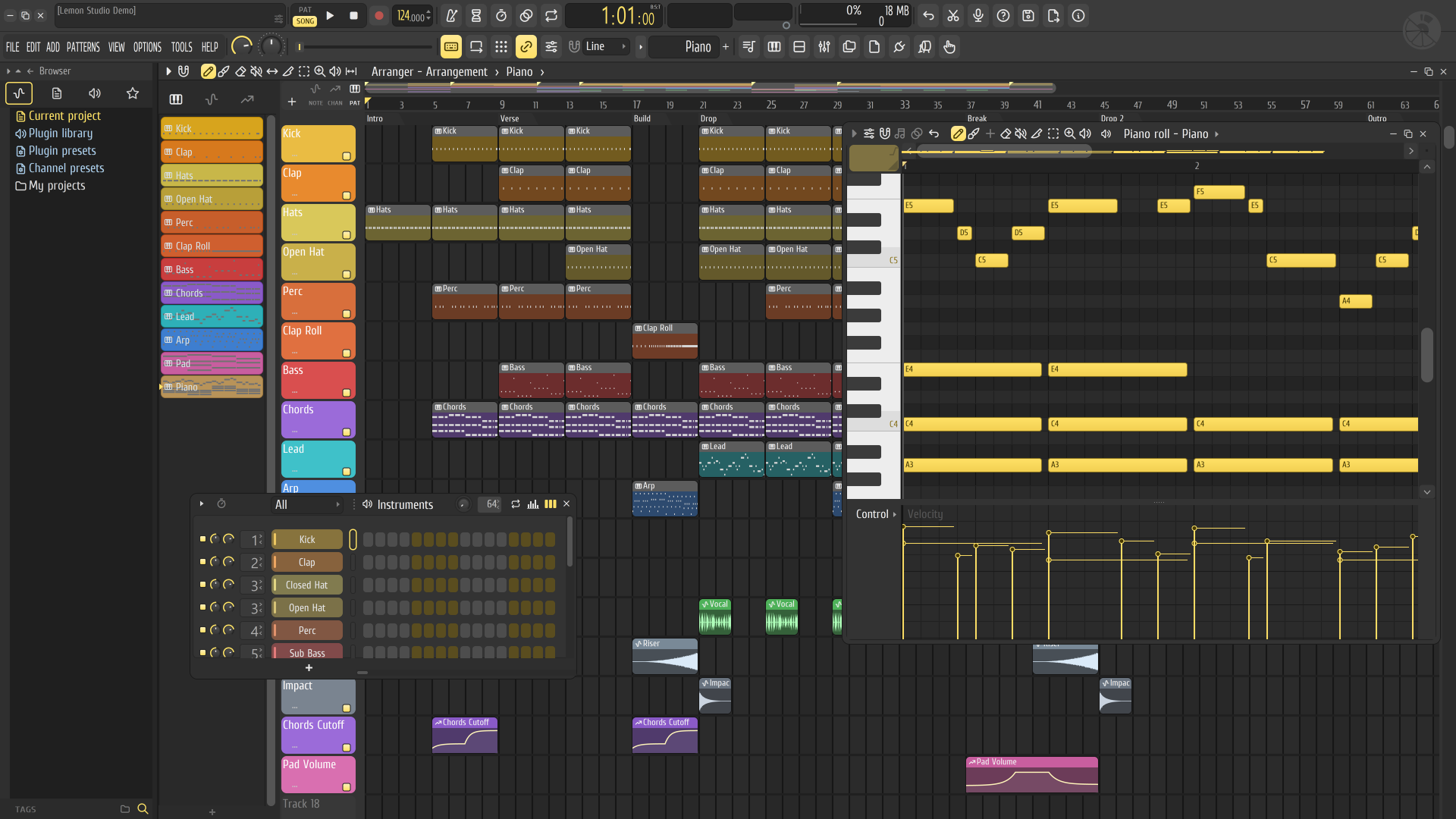
Each key shows or hides its window.
| Window | Key | What it’s for |
|---|---|---|
| Arranger | F5 | Put patterns, audio clips and automation clips in order |
| Instrument rack | F6 | Your instruments, and steps for beats |
| Piano roll | F7 | Melodies and chords for the selected instrument |
| Mixer | F9 | Levels, routing and effects |
| Browser | Alt+F8 | Your samples, plugins, presets and project contents |
| Plugin palette | F8 | Search for a plugin and add it |
| Clip palette | Ctrl+F8 | Jump to a pattern or an instrument in this project |
When the screen gets crowded, F12 closes all windows, and VIEW ▸ Arrange windows ▸ Realign (Shift+Ctrl+H) puts the main ones back in place.
The browser
Section titled “The browser”The tabs at the top of the browser are All, Current project, Plugin library and Favorites.
- Drop a folder from your file manager onto the window to add it to the browser.
- Click a sample to hear it.
- Drag a sample onto the instrument rack to play it with Lemon Sampler, or onto the arranger to make an audio clip.
Current project lists what’s in the song, including its undo history. Lemon Studio doesn’t come with a sample library, so the folders you add are where your sounds live.
The status bar
Section titled “The status bar”The status bar is the box at the top left of the toolbar. Its first line shows the project’s name. Its second line says what the control under the mouse does, often with its key, and what just happened after you do something. When you aren’t sure what a control does, hover over it and read this line.